


Your phone starts acting weird. The battery drains fast, it gets warm for no reason, or you notice apps you don’t remember installing.
Then the thought hits: is someone spying on my phone?
That’s a scary feeling, especially because your phone holds almost everything: messages, photos, passwords, location, banking apps, and private conversations.
Phone spyware is software that secretly monitors a mobile device. It may track activity, collect data, record location, or watch what you do without clear permission.
The problem is, spyware is not always obvious. Sometimes it looks like normal phone trouble, which makes people ignore the signs too long.
The fix is not panic. It’s knowing what to check, what warning signs matter, and what steps to take safely.
In this guide, I’ll walk you through how to detect phone spyware, how to check your phone, how spyware gets installed, and what you can do to protect yourself.
Key Takeaways
- Phone spyware can secretly monitor a mobile device, including activity, location, data, and private information.
- Spyware is not always obvious, because it can look like normal phone issues at first.
- One sign alone may not prove spyware, but several signs together deserve attention.
- Common warning signs include fast battery drain, overheating, high data usage, strange behavior, and unfamiliar apps.
- Broad app permissions are a major red flag, especially access to location, camera, microphone, contacts, SMS, Accessibility, or files.
- The best check starts with apps, permissions, battery usage, data usage, and security settings.
- Android users should check Play Protect, Permission Manager, Accessibility access, device admin apps, and unknown app install permissions.
- Spyware often gets in through risky apps, unsafe links, fake cleaner/security apps, outdated software, or physical access to the phone.
- If spyware is suspected, change important passwords from a safe device, not from the phone you are checking.
- The main rule is simple: look for unusual patterns, remove suspicious access, update your phone, and avoid risky apps or links.
Can Spyware Be Detected on Your Phone?
Yes, spyware can be detected on your phone, but it is not always obvious.
That’s the tricky part.
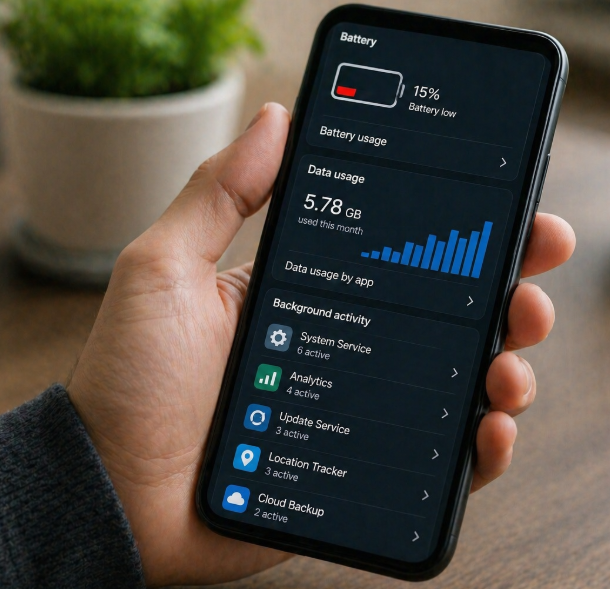
Some spyware leaves clear signs, like strange apps, fast battery drain, or high data usage. Other spyware runs quietly in the background and tries to look normal, so you may only notice small changes at first.
The goal is to look for patterns, not one random issue.
- Unfamiliar apps: If you see apps you do not remember installing, check them closely. Some spyware hides under normal-looking names.
- Battery draining fast: Spyware may run in the background all day, which can make your phone lose power faster than usual.
- Phone overheating: If your phone feels hot when you are not using it, something may be running quietly.
- Unusual data usage: Spyware may use mobile data to send information out, so sudden data spikes matter.
- Strange settings changes: New permissions, unknown device admin access, or changed security settings can be warning signs.
- Security scan alerts: A trusted mobile security app may detect suspicious apps, risky permissions, or known spyware behavior.
Simple rule: one issue may be normal, but several signs together deserve attention.
📖 You May Also Like This “Tech Security” Article: How to Detect Hidden Cameras in Any Room Step by Step
How to Know If Your Phone Has Spyware
The hard part is that spyware can look like normal phone problems at first.
A weak battery, an old phone, a bad app, or full storage can also cause issues. So instead of assuming the worst right away, check for signs that keep happening together.
Here’s what to look for:
- Your battery suddenly drains faster: If your phone used to last all day but now dies quickly, hidden background activity could be one reason.
- Your phone gets hot when idle: A phone warming up during gaming or video calls is normal. Heating up while sitting unused is more suspicious.
- You notice unknown apps: Check your app list for anything you did not install or do not recognize.
- Your data usage jumps: If your mobile data usage rises without a clear reason, an app may be sending information in the background.
- Your phone acts strangely: Random restarts, screen lighting up, delayed shutdowns, or odd noises during calls can point to unwanted activity.
- Permissions look too broad: Apps with access to location, microphone, camera, messages, or accessibility settings should make sense for what the app does.
- Your accounts show unusual activity: Login alerts, password reset emails, or messages you did not send may mean your phone or account needs checking.
Example: If your phone is old and the battery drains faster, that alone may not mean spyware. But if the battery drains fast, data usage spikes, and you find an unfamiliar app, that’s worth investigating.
Simple rule: spyware usually shows up through a pattern of strange behavior, not one single sign.
How to Check Your Phone for Spyware
If you think your phone has spyware, don’t start by deleting random apps. Start by checking the areas spyware usually touches: apps, permissions, battery, data, and security settings.
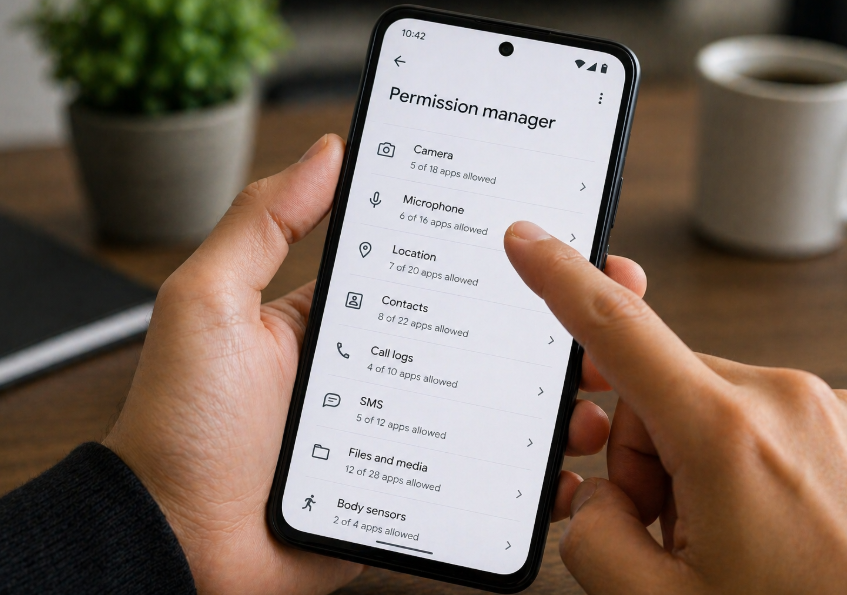
The goal is to find anything that does not belong.
- Check your app list: Go through every installed app and look for names you do not recognize. Pay attention to apps with plain names like “System Service,” “Update,” “Sync,” or anything you never installed.
- Review app permissions: Check which apps can access your location, camera, microphone, contacts, messages, and files. Google’s Android help says you can review permissions through Settings → Security & Privacy → Privacy → Permission manager.
- Check battery usage: Go to battery settings and look for apps using power in the background. A suspicious app may keep working even when you are not using your mobile phone.
- Check mobile data usage: Look for apps using unusual amounts of data. Spyware may send information from your phone to another place.
- Run a Play Protect scan: Google Play Protect checks Android apps and devices for harmful behavior, warns about potentially harmful apps, and may remove or deactivate harmful apps.
- Look for device admin access: Some spyware tries to get powerful permissions so it is harder to remove. Android developer documentation notes that device admin apps must be unregistered as administrators before they can be uninstalled.
- Update your phone: Install the latest system and security updates. Updates help close security holes that spyware may abuse.
- Change important passwords from a safe device: If you suspect spyware, change email, banking, social, and cloud passwords from another trusted phone or computer.
Simple rule: look for apps with strange behavior, broad permissions, high battery use, or high data use.
📖 You May Also Like This “Tech Security” Article: Is Hotel WiFi Safe? What You Should Know Before Using It
How to Check for Spyware on Android
Android gives you several places to check for spyware, but you need to go step by step.
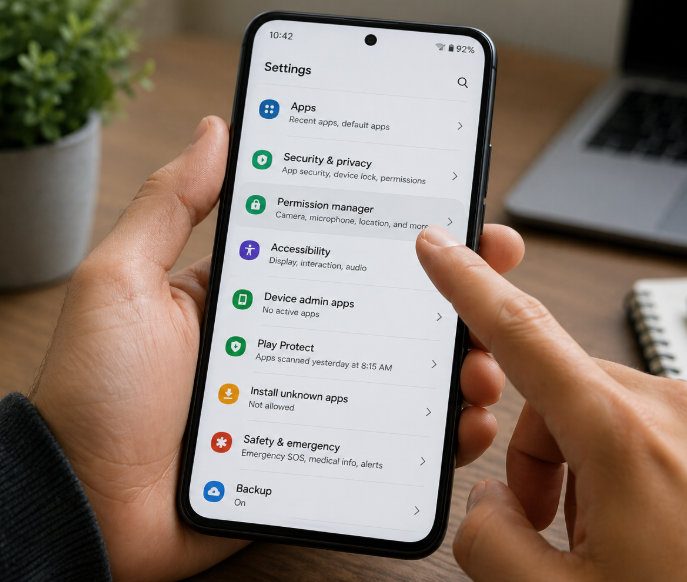
- Open the app list first: Go to Settings → Apps and review all installed apps. Uninstall anything suspicious only if you are sure you do not need it.
- Run Google Play Protect: Open Google Play Store → profile icon → Play Protect → Scan. Keep Play Protect turned on because Google says it scans apps for harmful behavior and can warn, deactivate, or remove harmful apps.
- Check sensitive permissions: Open Settings → Security & Privacy → Privacy → Permission manager and review apps using location, microphone, camera, contacts, SMS, and files.
- Check Accessibility access: Go to Settings → Accessibility and look for apps with access that should not have it. Spyware or stalkerware may abuse Accessibility permissions to watch activity or control actions.
- Check device admin apps: Search your settings for Device admin apps or Device administrators. If an unknown app has admin access, it may block normal uninstall steps.
- Check installed apps from unknown sources: Review which apps are allowed to install unknown apps. Turn this off for apps that do not need it.
- Restart in Safe Mode if needed: Safe Mode limits many third-party apps from running. If the phone behaves normally in Safe Mode, a downloaded app may be causing the issue.
Simple rule: on Android, check apps, permissions, Accessibility, device admin access, and Play Protect first.
How Do You Get Spyware on Your Phone?
Most phone spyware gets installed because something gives it access. Sometimes that is a bad app. Sometimes it is a risky link. Sometimes someone had physical access to the phone.
Here are the most common ways it happens:
- Installing apps from outside official stores: Apps from unknown websites or third-party stores may hide spyware inside normal-looking tools.
- Clicking suspicious links: Fake texts, emails, or pop-ups can push you toward harmful downloads or fake login pages.
- Giving apps too many permissions: A simple app should not need access to your microphone, camera, location, messages, and contacts unless there is a clear reason.
- Someone gets physical access to your phone: Some spyware is installed by someone who knows your passcode or can use your unlocked device.
- Old software stays unpatched: Outdated systems may have security weaknesses that spyware can use.
- Rooted or jailbroken phones: Removing normal security protections can make it easier for harmful apps to run.
- Fake security or cleaner apps: Some apps claim to speed up or protect your phone but ask for too much access.
Example: If you install a “free tracker” or “phone cleaner” from a random website and it asks for Accessibility, location, microphone, and device admin access, that is a major warning sign.
Simple rule: spyware usually gets in through risky apps, unsafe links, weak access control, or someone using the phone directly.